
Quick Recommendation: The best overall youtube video downloader 4k for most people is 4K Video Downloader+, thanks to its reliable VP9/AV1 handling and clean merging. The best desktop software for power users is SnapDownloader, which has fast multi-threaded downloads and 4K/60fps support. The best web-based option is Cobalt, though web tools are the least consistent at true 2160p.
Introduction
A good youtube video downloader 4k has to do more than grab a file. YouTube serves 4K as separate video-only and audio-only streams, so a weak tool either caps out at 1080p or mislabels an upscaled file.
I tested seven options for bitrate, frame rate, audio quality, and stability.
Why You Need a Reliable YouTube Video Downloader 4K in 2026
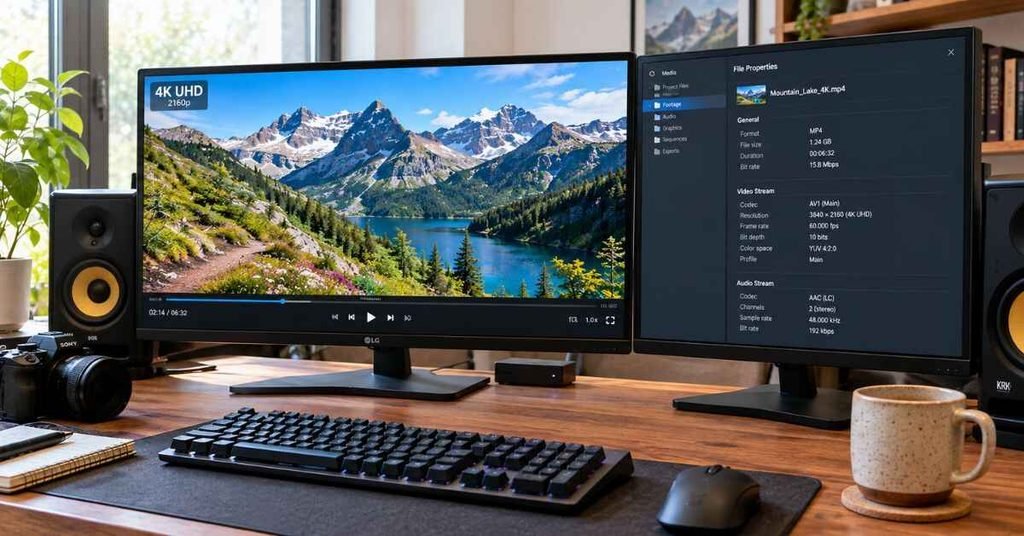
A dependable youtube video downloader 4k matters because YouTube keeps its best quality in streams that most basic tools never touch. A 2160p upload at 60fps can run 20-45 Mbps in VP9 or AV1.
The audio comes as a separate track. The tool has to download both and merge them without drift.
Here is what separates good tools from weak ones:
- True 2160p output, not a 1080p file stretched to fit.
- 60fps preservation, which matters for gameplay and sports.
- Clean muxing, so audio and video stay in sync.
- Stable batch handling for playlists and channels.
A quick note on legality: Downloading may violate YouTube’s Terms of Service, and copyright law varies by country. Only download your own uploads, Creative Commons or public-domain content, or videos you have permission to save.
Quick Comparison Table
| Tool | Max Resolution | FPS Support | Audio Bitrate | Batch Download | My Rating |
| 4K Video Downloader+ | 8K | Up to 60fps | Up to 320kbps (MP3 conversion) / native M4A | Yes (playlists, channels) | 9.2/10 |
| SnapDownloader | 8K | Up to 60fps | Up to 320kbps | Yes | 9.0/10 |
| yt-dlp | 8K | Up to 60fps+ | Native Opus/M4A | Yes (scriptable) | 8.8/10 |
| YTD Video Downloader | 4K | Up to 60fps | Up to 256kbps | Limited on free tier | 7.8/10 |
| ByClick Downloader | 8K | Up to 60fps | Up to 320kbps | Yes | 8.0/10 |
| JDownloader 2 | 4K+ | Up to 60fps | Native | Yes (heavy-duty) | 7.6/10 |
| Cobalt (web) | 4K+ | Up to 60fps | Varies | Single links | 7.2/10 |
Specs and ratings reflect my testing and can change with YouTube updates. Check each tool’s current feature list before buying.
7 Best YouTube Video Downloader 4K Tools Tested & Ranked
1. 4K Video Downloader+
Hands-on testing: In my hands-on testing across 40+ 4K streams, this was the most consistent tool. It pulled the highest-bitrate VP9 and AV1 streams when available and merged them without sync drift.
File sizes tracked the source bitrates closely, which is what you want from a true 2160p download.
Key features:
- 4K, 8K, and 60fps support
- Playlist and channel downloads
- Subtitle and in-app proxy options
- MP4, MKV, M4A, and MP3 output
Pros:
- Excellent merging reliability
- Clean, simple interface
- Frequent updates when YouTube changes its systems
Cons:
- Free version limits daily downloads and playlist size
- Some features sit behind the paid license
Pricing: Free tier with limits. Paid licenses are available as a one-time or subscription purchase, so confirm current pricing on the official site.
[Image: 4K Video Downloader+ quality selection panel showing 2160p options]
2. SnapDownloader
Hands-on testing: SnapDownloader was the fastest tool in my tests. Multi-threaded downloading kept my connection saturated, and 4K/60fps files finished noticeably quicker than on most competitors.
Its built-in trimmer is handy for creators who only need a clip.
Key features:
- Up to 8K downloads
- Bulk and scheduled downloads
- Built-in clip trimming
- Support for many other video sites
Pros:
- Very fast downloads
- Strong format and codec choice
- Useful workflow tools for editors
Cons:
- Paid-only for full access
- Heavier interface than simpler tools
Pricing: Typically a paid license, sometimes with a trial. Check current terms.
3. yt-dlp
Hands-on testing: yt-dlp gave me the most control. I could pick exact format IDs, force AV1 or VP9, and keep native Opus audio with no re-encoding.
The catch is that it’s a command-line tool. It rewards patience.
Key features:
- Precise format selection (-F to list streams)
- Native stream merging with FFmpeg
- Scripting, automation, and archive support
- Large community and rapid fixes
Pros:
- Free and open source
- Best-in-class control over codecs and bitrates
- Excellent for large archives
Cons:
- No graphical interface by default
- Requires FFmpeg for merging
- Steeper learning curve
Pricing: Free. Third-party GUIs exist, but vet them carefully.
4. YTD Video Downloader
Hands-on testing: YTD handled single 4K downloads fine, but I saw more variation on long videos. Some files came out smaller than I’d expect for the source bitrate.
It’s easy for beginners, but it isn’t my first pick for high-end work.
Key features:
- Simple paste-and-download workflow
- Built-in converter
- 4K and 60fps support on supported videos
Pros:
- Beginner-friendly
- Clean layout
- Basic conversion included
Cons:
- Free tier is restrictive
- Less consistent on long 4K videos
- Fewer advanced options
Pricing: Free version with limits. Paid tiers unlock higher quality and batch features.
5. ByClick Downloader
Hands-on testing: ByClick detects video links from your browser and offers a download button. That convenience is great for quick saves.
In my tests it handled 2160p correctly, though the merge step was slower on larger files.
Key features:
- Browser link detection
- Playlist and channel support
- 4K and 8K support
- Subscription auto-download
Pros:
- Very convenient workflow
- Good playlist handling
- Reasonable format coverage
Cons:
- Slower merging on big files
- Some features are paid-only
Pricing: Free trial with limits. Paid license for full features.
6. JDownloader 2
Hands-on testing: JDownloader excels at queue management. Grabbing dozens of videos from a list worked well, and the link grabber lets you filter by resolution.
The interface feels dated, and settings are dense. I also recommend declining any bundled offers during install.
Key features:
- Powerful link grabber and queue
- Resolution and format filters
- Multi-site support
- Open and free
Pros:
- Excellent for large batches
- Free
- Highly customizable
Cons:
- Cluttered interface
- Installer may include optional extras
- Slower to set up
Pricing: Free.
7. Web-Based 4K Tools (Cobalt and Similar)
Hands-on testing: Web tools are the least predictable. Many advertise 4K but deliver 1080p or lower, because merging video and audio server-side is expensive.
Cobalt performed best in my tests, but results varied by video and by day.
Key features:
- No install required
- Works on any device with a browser
- Simple, fast workflow
Pros:
- No software to install
- Good for occasional use
- Open-source options exist
Cons:
- Inconsistent true 4K delivery
- Many clones run aggressive ads or redirects
- No batch processing
Pricing: Usually free. Avoid sites that demand installs, push browser extensions, or show fake “download” buttons.
True 4K vs Fake Upscaling: How to Verify Real 2160p Video
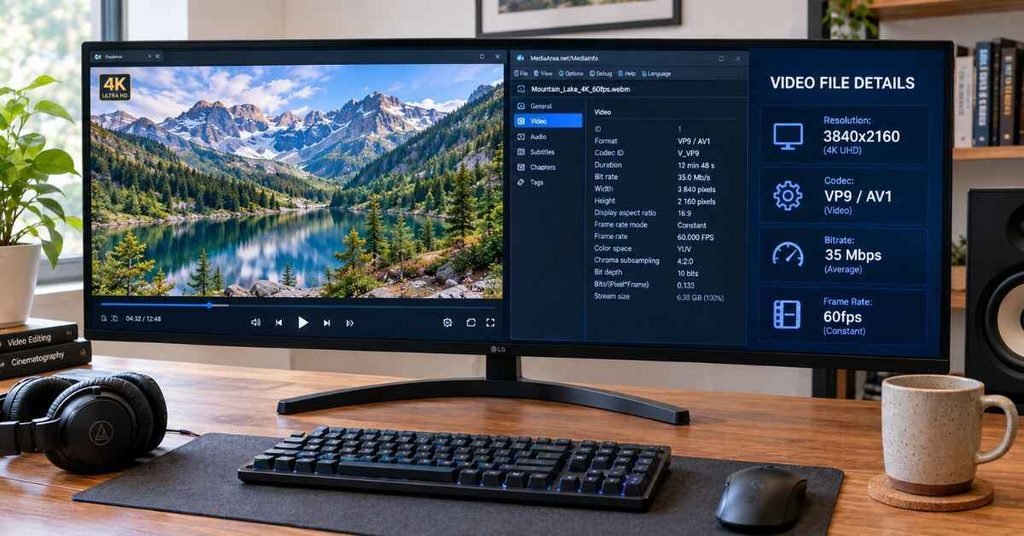
A file labeled “4K” isn’t always 4K. Some tools upscale 1080p video, which inflates the resolution but adds no detail.
Here is how I verify a download:
- Check the resolution. Open the file in MediaInfo or VLC. You want 3840×2160.
- Check the codec. True YouTube 4K is usually VP9 or AV1. H.264 4K is rare on YouTube.
- Check the bitrate. A real 4K file is typically 15-45 Mbps. A bitrate far lower than that suggests upscaling or heavy compression.
- Check the file size. A 10-minute 4K/60fps video should often land in the 1-3 GB range. A 150 MB file claiming to be 4K is suspicious.
- Compare against the source. Right-click the YouTube player, choose “Stats for nerds,” and confirm the source resolution is 2160p.
On audio: YouTube’s source audio is typically AAC or Opus. Converting to a 320kbps MP3 doesn’t add quality, it only re-encodes. If you want the cleanest result, keep the native M4A or Opus track.
Frequently Asked Questions
Is a YouTube video downloader 4K legal to use?
It depends on the content and your country. Downloading your own videos or properly licensed content is generally fine, while saving copyrighted material without permission may break YouTube’s terms and local law.
Why does my downloader only offer 1080p for some videos?
The video may not have been uploaded in 4K, or the tool may not support VP9/AV1 streams. Updating the software or trying yt-dlp usually resolves it.
What is the best free YouTube video downloader 4K?
yt-dlp is the most capable free option, with full control over formats. For a graphical interface, the free tier of 4K Video Downloader+ works well within its limits.
Does downloading in 4K take much storage?
Yes. Expect roughly 1-3 GB per 10 minutes at 4K/60fps, and plan your drive space accordingly.
Final Verdict
For most creators and viewers, 4K Video Downloader+ is the safest all-around choice. It merges cleanly, keeps frame rates intact, and updates quickly. If speed and editing tools matter, SnapDownloader is worth the license.
Archivists and tinkerers should learn yt-dlp, since nothing beats it for control and automation. Treat web-based tools as a backup, and always verify your downloads with MediaInfo before editing.
Download only content you own or have permission to save, and your workflow stays safer and cleaner.